> ## Documentation Index
> Fetch the complete documentation index at: https://docs.molin.ai/llms.txt
> Use this file to discover all available pages before exploring further.
# WooCommerce
> Step-by-step guide to integrate Molin AI chatbot with your WooCommerce or WordPress e-commerce store.
The WooCommerce plugin is currently under development. Until it's published officially, follow this guide to add your Molin's chatbot to your Woocommerce shop via a script.
In this blog, we teach you step-by-step how to add Molin to your WooCommerce or WordPress e-commerce store.
> Before you start the integration, make sure you already created your AI chatbot. If not, [click here](https://molin.ai/shop-ai/setup).
### Short video
### Steps
1. On your WordPress dashboard page, in the left sidebar select **Plugins** ➔ **Add New Plugin** with the button in the top left corner.
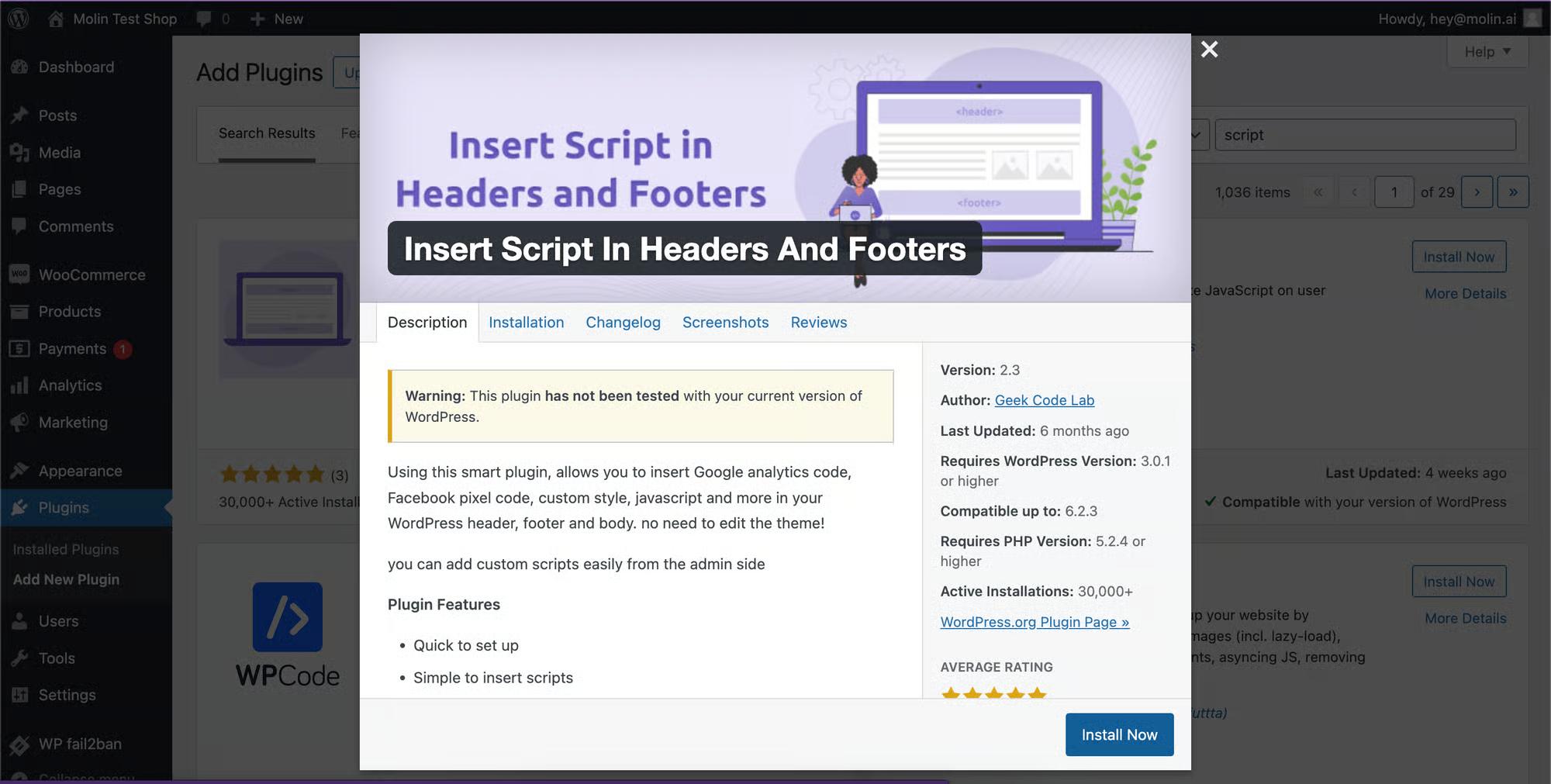
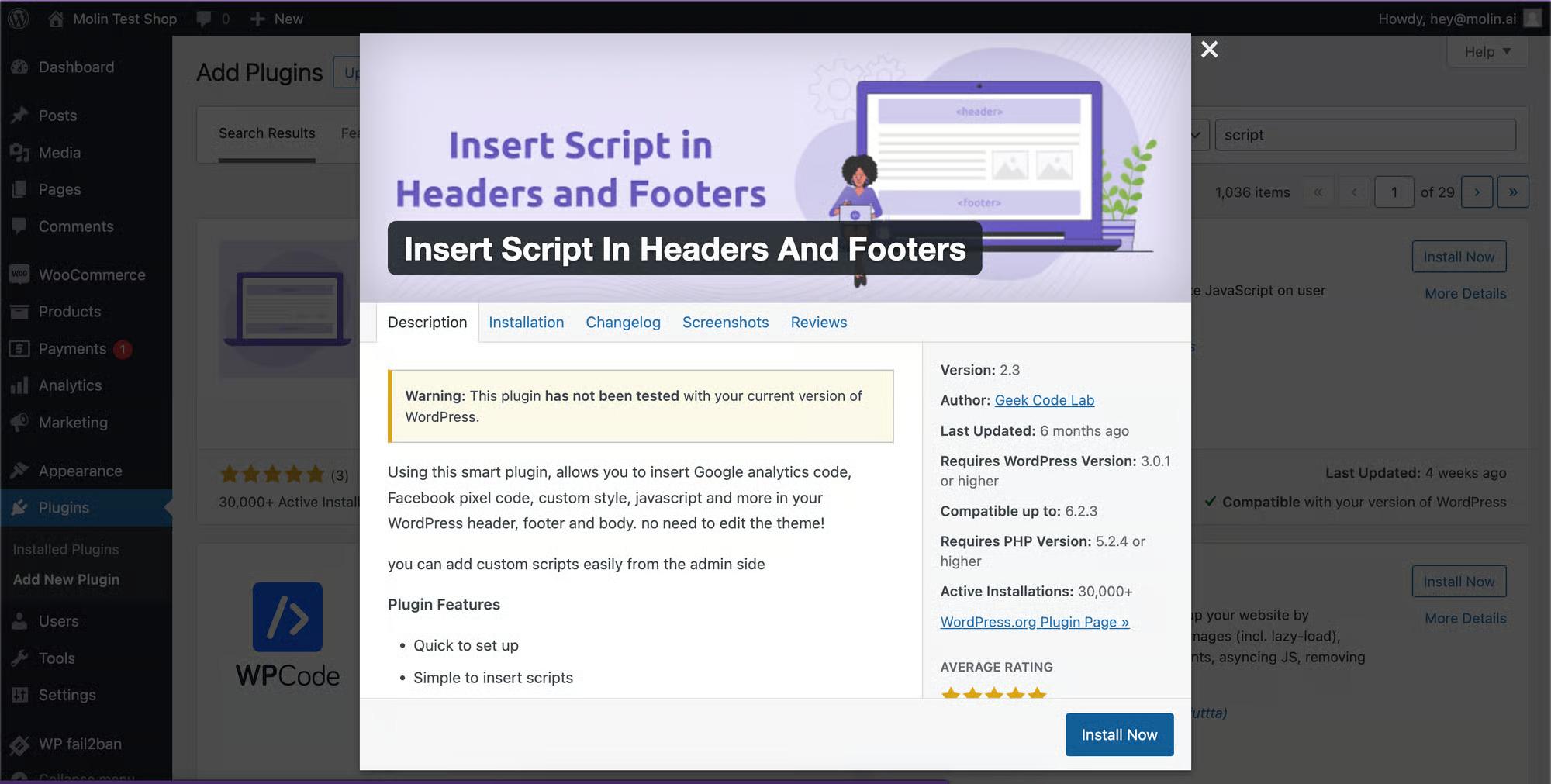
2. Search for the Insert [**Headers And Footers plugin**](https://wordpress.org/plugins/wp-headers-and-footers/), then install and Activate it. Note, the images show an older plugin , but the new one works the same way. So, don't worry if you see a different Plugin name.
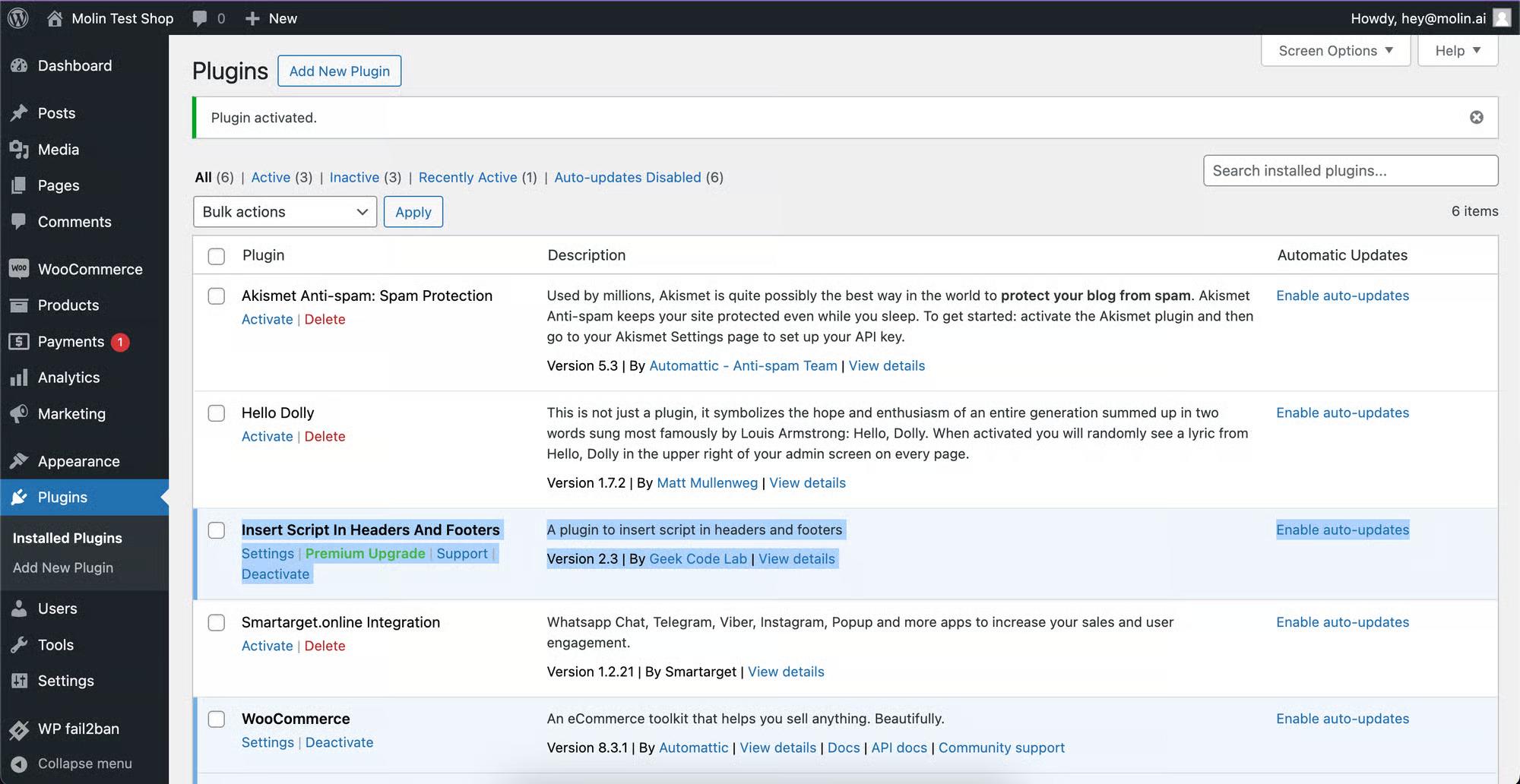
3. After activation, you should see it in the list of your Plugins, like this and it has to be active.
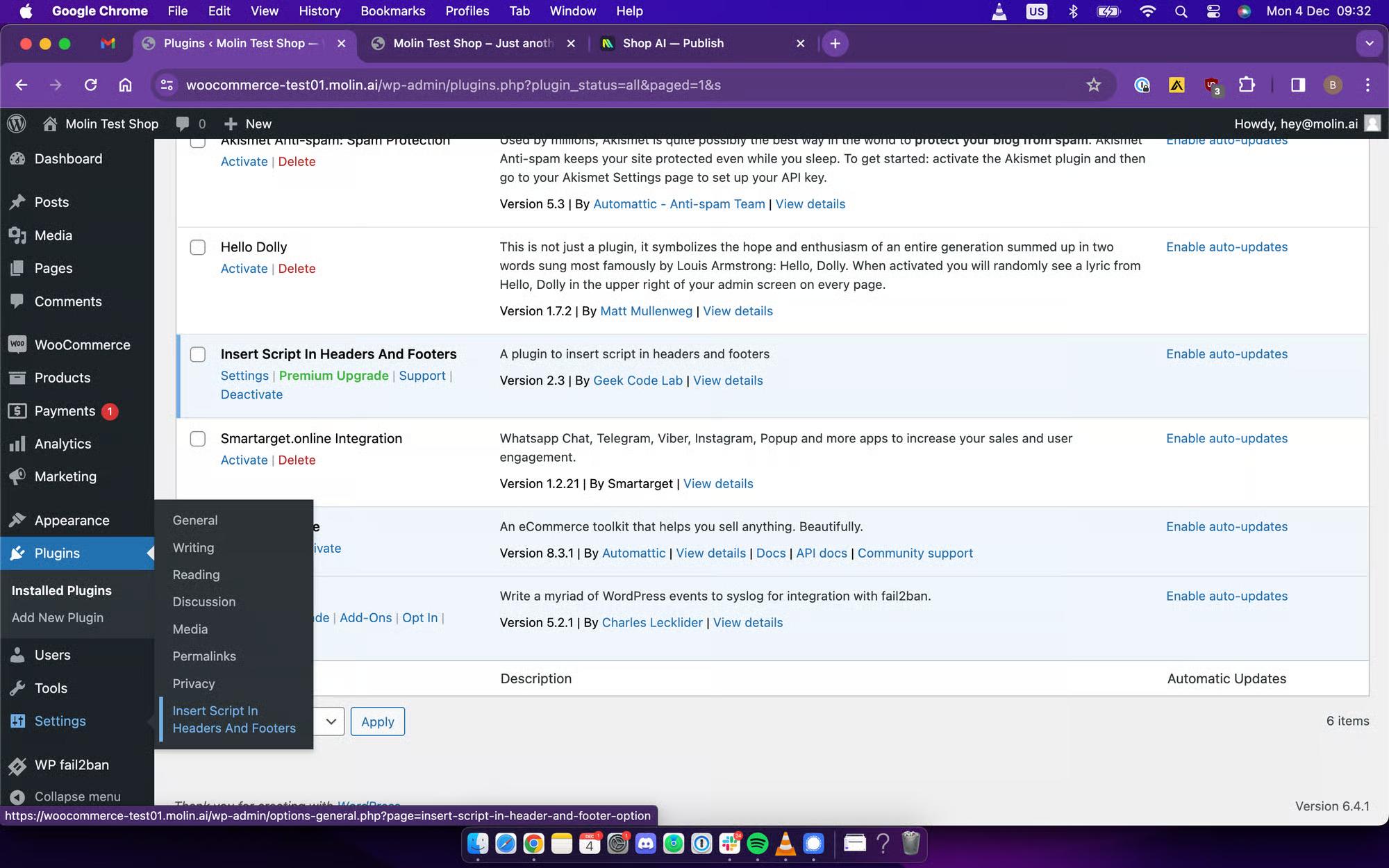
4. In the left sidebar, go to **Settings** and Click on the **Insert Script in Headers And Footers** inside the hoover menu.
5. Copy your Script from Molin's [**Publish**](https://molin.ai/app/publish) page.
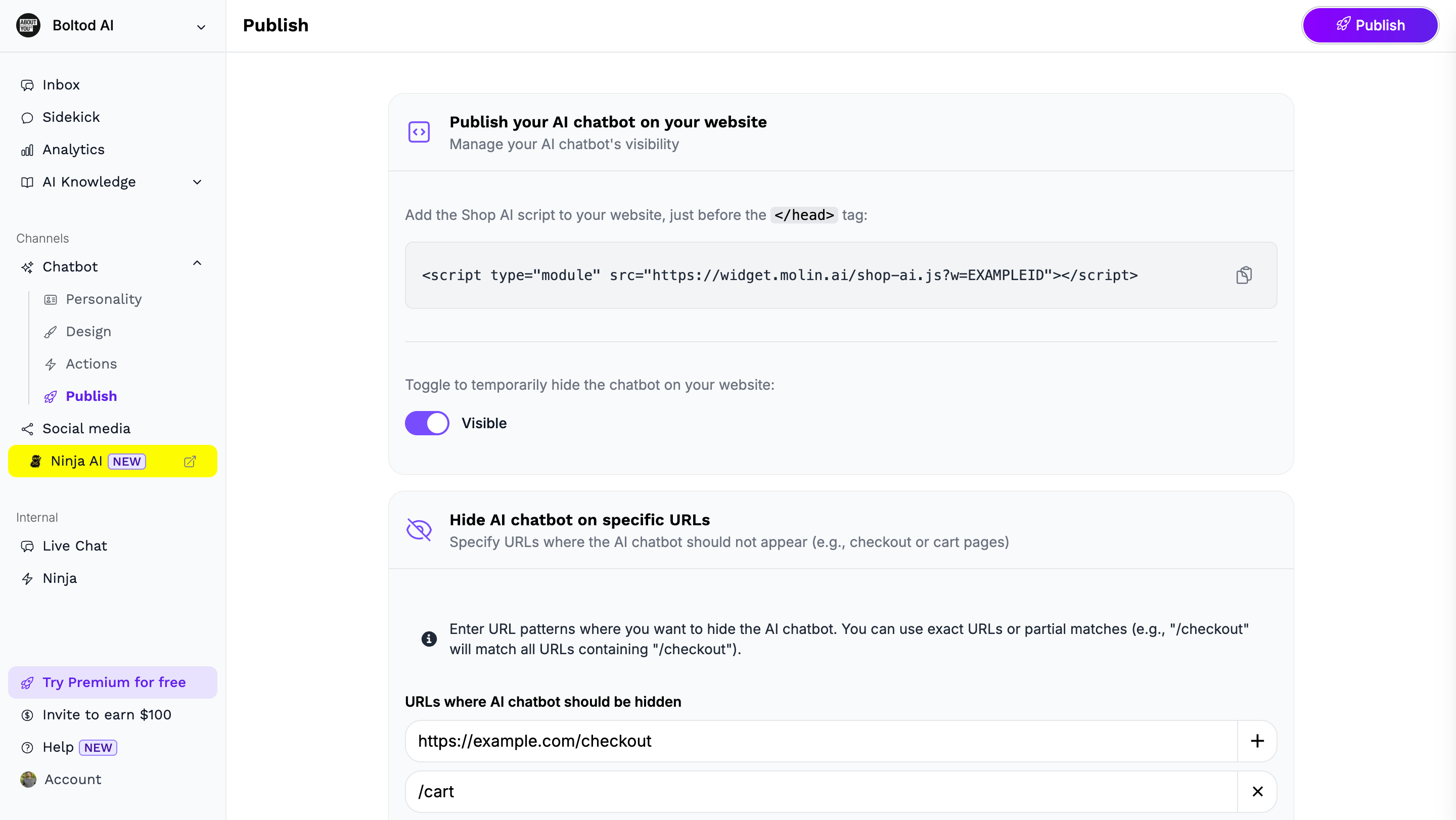
6. Insert your script in the **Scripts in Header** textbox, then scroll down and **Save** it.
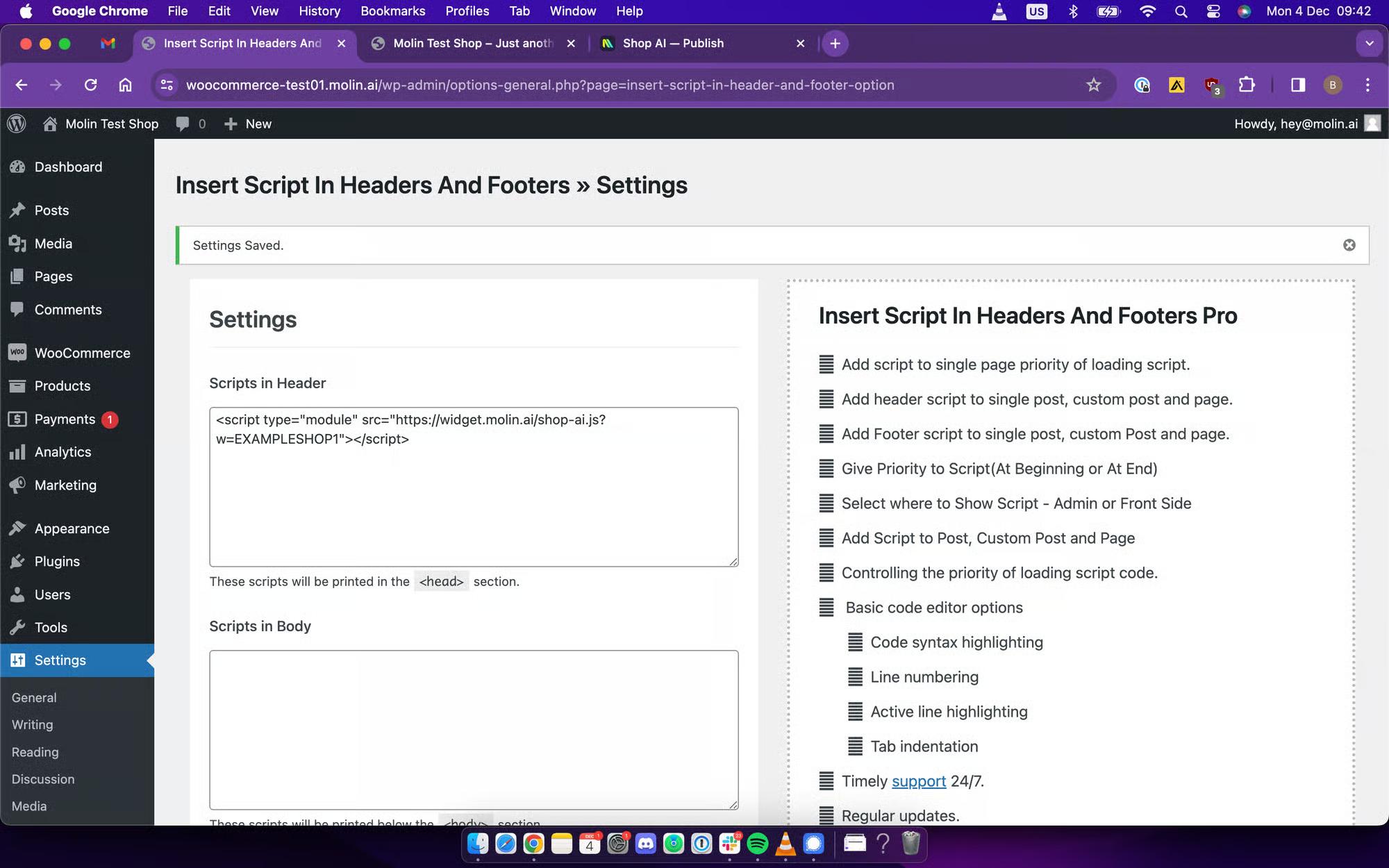
7. After saving the code, reload your e-commerce store's website and you should see your Molin widget appearing in the bottom right corner.
If you encounter any problems with the integration, please contact us at **[hey@molin.ai](mailto:hey@molin.ai)**.